
Checklist for Testing Presentation Accessibility
Creating accessible presentations ensures that everyone, including individuals with disabilities, can engage with your content. Accessibility isn't just about meeting legal requirements like ADA and Section 508 - it improves clarity, usability, and inclusivity for all. Here's what you need to know:
Why Accessibility Matters: 26% of U.S. adults live with a disability, according to the CDC. Accessibility ensures your message reaches everyone.
Key Standards: Follow WCAG 2.1 Level AA guidelines and Section 508 to meet compliance and usability standards.
Core Principles (POUR):
Perceivable: Use high-contrast text, alt text for visuals, and clear fonts.
Operable: Ensure navigation works with keyboards and screen readers.
Understandable: Keep text simple and avoid jargon.
Robust: Ensure compatibility with assistive technologies.
Preparation Tips: Use accessible templates, structured content, and descriptive titles.
Testing Steps:
Run PowerPoint's Accessibility Checker.
Perform manual checks for reading order, alt text, and keyboard navigation.
Fix Issues: Document problems systematically and prioritize fixes.
Accessible presentations are not only a legal obligation but also a way to ensure equal access for everyone. Use tools like PowerPoint's Accessibility Checker and follow these steps to create presentations that are clear, effective, and barrier-free.
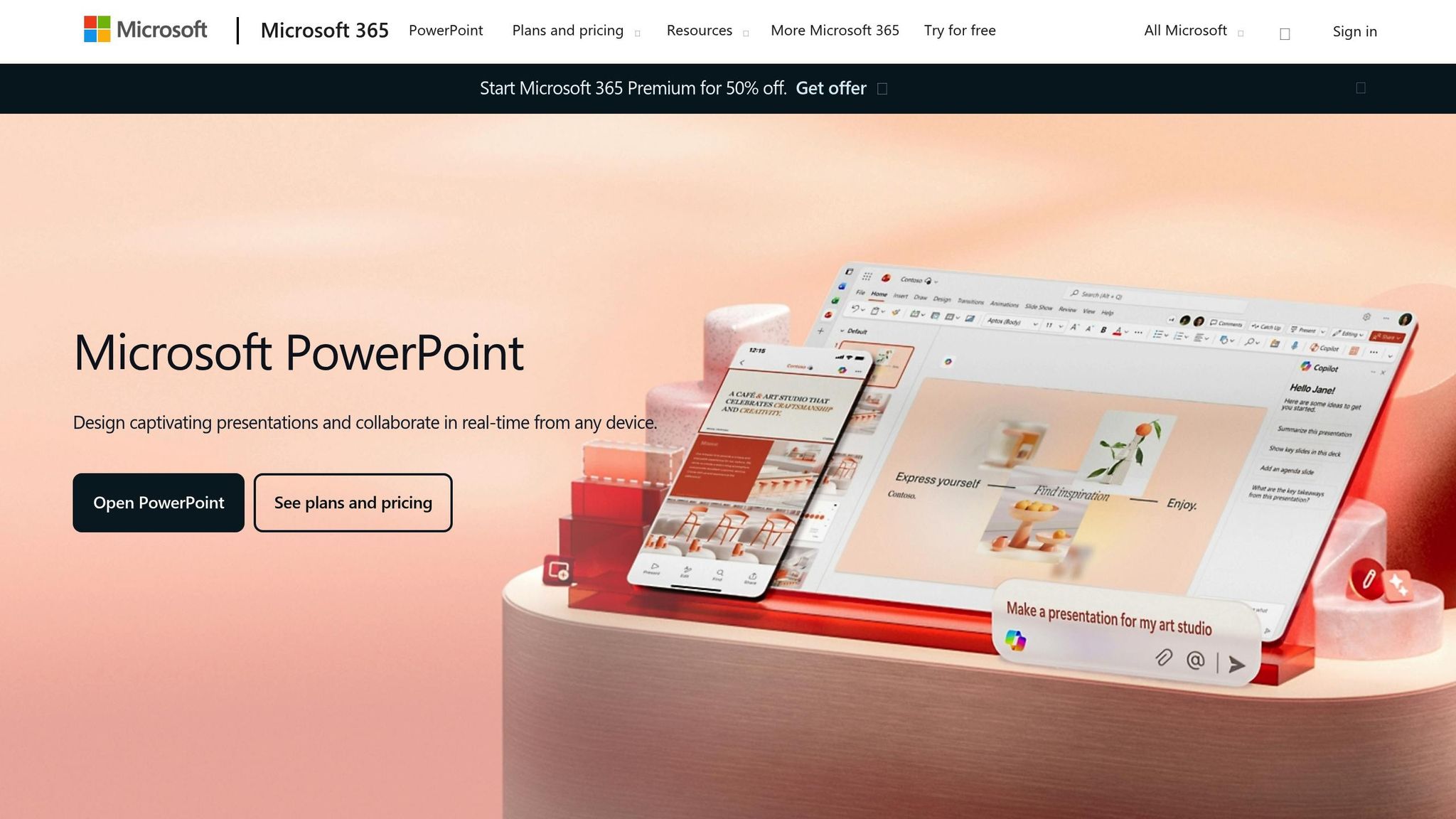
Accessibility Checker in PowerPoint
Key Accessibility Standards You Need to Know
Before diving into accessibility testing, it's crucial to understand the standards that guide inclusive presentation design. These standards ensure presentations meet legal requirements and are accessible to everyone. In the U.S., two key frameworks shape accessible presentation practices: the Web Content Accessibility Guidelines (WCAG) and Section 508 of the Rehabilitation Act.
WCAG 2.1 offers a global standard for digital accessibility. While it was initially developed for web content, its principles now apply to all digital formats, including PowerPoint presentations. To meet accessibility goals, aim for WCAG 2.1 Level AA compliance. This includes maintaining at least a 4.5:1 color contrast ratio for regular text and 3:1 for larger text.
Section 508 is a federal law requiring electronic content from U.S. federal agencies and contractors to be accessible to people with disabilities. Although primarily for government use, many private organizations also adopt Section 508 standards to minimize legal risks and promote inclusivity.
In 2020, the U.S. Department of Education resolved a case where online course materials, including presentations, were found inaccessible to visually impaired students [U.S. Department of Education, Office for Civil Rights, 2020]. The university was required to align its digital content with WCAG 2.1 Level AA standards. This case underscores how accessibility standards directly affect presentation content in both educational and professional environments.
These frameworks underpin the four core accessibility principles outlined below.
4 Core Accessibility Principles
The WCAG framework is built on four key principles - Perceivable, Operable, Understandable, and Robust (POUR) - which serve as the foundation for accessible slide design.
Perceivable: Ensure all content is presented in ways that everyone can detect. For example, use sufficient color contrast, provide alt text for images and charts, and use large, readable text (22–32 points minimum). Avoid relying solely on color to convey information - add text labels to graphs and charts for clarity.
Operable: Your presentation should be easy to navigate using a keyboard or screen reader. Stick to PowerPoint's built-in layouts to maintain a logical reading order.
Understandable: Keep your content clear and simple. Limit slides to 5–8 lines of text with concise bullet points, define acronyms on first use, and steer clear of complicated jargon.
Robust: Make sure your presentation works seamlessly with assistive technologies like screen readers. This includes using a clear semantic structure, writing descriptive hyperlink text, and ensuring a logical reading order.
Legal and Ethical Requirements
Failing to make presentations accessible can violate the Americans with Disabilities Act (ADA) and similar laws. Non-compliance risks include lawsuits, regulatory investigations, costly remediation efforts, and damage to your reputation. In federal contexts, Section 508 violations could lead to contract cancellations or loss of federal funding. The U.S. Department of Justice has also made it clear that the ADA applies to digital content, including public-facing presentations.
Beyond legal obligations, prioritizing accessibility reflects a commitment to corporate social responsibility and supports diversity, equity, and inclusion initiatives. By designing accessible presentations, you're not just avoiding legal trouble - you’re also ensuring that the 26% of U.S. adults with disabilities can fully participate in your communications [U.S. Census Bureau].
How to Prepare Your Presentation for Accessibility Testing
Getting your presentation ready for accessibility testing starts with proper preparation. By using PowerPoint’s built-in tools and features, you can address common accessibility challenges early, saving time and ensuring your slides are easy to navigate. Once your content and layout are set, you’re ready to begin testing.
Choose Accessible Templates and Slide Layouts
Stick to PowerPoint’s built-in slide layouts to maintain a logical reading order for screen readers. Custom designs can disrupt this order, so opt for simple themes with solid backgrounds and high-contrast text for better readability.
The Selection Pane in PowerPoint (found under the Home tab) is a helpful tool for reviewing and adjusting the reading order of elements on each slide. Screen readers process items from top to bottom in the Selection Pane, so make sure titles and main content appear before decorative elements.
Structure Content for Clear Reading
Every slide should have a unique, descriptive title to assist screen readers. Even if the title is hidden for design purposes, it’s still vital for navigation.
Use PowerPoint’s built-in formatting tools for text. For example, when creating lists, rely on the List buttons in the toolbar instead of manually adding bullets or numbers. Similarly, apply heading styles to establish a clear structure that assistive technologies can easily interpret.
Keep slides concise - limit content to about 5 lines with roughly 5 words per line. This helps maintain white space and reduces cognitive overload for your audience.
When adding hyperlinks, use descriptive text that clearly explains the link’s purpose. Avoid vague phrases like “click here” or “read more.” Instead, provide specific descriptions that let users know what to expect.
Check Visual Elements for Accessibility
Font choice and size are critical for readability. Use sans-serif fonts like Arial, Calibri, or Verdana, and ensure body text is at least 24 points (32 points is even better). Avoid using all caps, excessive italics, or underlining, as these can make reading harder for individuals with dyslexia or other challenges.
Check text-background contrast with tools like WebAIM’s Color Contrast Checker. Aim for a contrast ratio of at least 4.5:1, though 7:1 is ideal. Also, avoid relying solely on color to convey important information.
For images, charts, and graphs, always include alternative text that summarizes their essential information in a sentence or two. Mark purely decorative images so screen readers can skip them. For complex visuals, consider using a table format instead, as it may be easier for assistive technologies to interpret.
Animations should be simple or avoided altogether. Complex or fast-moving effects can disrupt screen readers and distract users with cognitive disabilities.
If your presentation has high-stakes requirements for accessibility, consider seeking professional help. Agencies like Present Partners, based in New York, specialize in creating PowerPoint designs that balance accessibility and aesthetics. Their services include building template systems and structuring content to meet both design and accessibility standards.
Once your presentation is prepared, you’re ready to dive into the testing phase to identify and resolve any remaining accessibility issues.
How to Test Your Presentation for Accessibility
This step is about wrapping up your accessibility review to ensure your presentation is free of major barriers. The process involves two key actions: running automated tools and conducting manual checks to catch anything the software might overlook.
Run PowerPoint's Accessibility Checker
PowerPoint includes a handy Accessibility Checker that acts as your first safeguard against common issues. To use it, open your presentation, go to the Review tab on the ribbon, and select Check Accessibility. The tool scans your slides and displays the results in a pane on the right.
The checker organizes issues into three categories:
Errors: These are critical problems that block access to your content, such as missing alt text for images, slides without titles, or poor color contrast. Address all errors before sharing your presentation.
Warnings: These highlight potential issues, like complex table layouts or text that depends on color alone to convey meaning. These should be reviewed and fixed where possible.
Tips: These are suggestions for improving usability, such as simplifying animations or refining link descriptions. Address these based on your time and priorities.
Pay close attention to flagged alt text issues. If alt text is missing, add a short description (one or two sentences) explaining the image's purpose. For color contrast concerns, tools like WebAIM’s Color Contrast Checker can help ensure compliance.
Run the Accessibility Checker multiple times as you develop your presentation to catch and fix issues early.
Complete Manual Accessibility Checks
Automated tools are helpful, but they don't catch everything. That’s why manual checks are a must. Start by confirming the reading order of slide elements. Screen readers follow a logical top-to-bottom, left-to-right sequence, so use the Selection Pane (found under the Home tab) to adjust the order as needed.
Next, test navigation and interactive elements using only your keyboard. This step helps you understand the experience of users who rely on assistive technology. Ensure all buttons, links, and other interactive features work without requiring a mouse.
Review all alt text manually to ensure it’s both accurate and descriptive. Automated tools can point out missing alt text but can’t judge its quality. Avoid vague descriptions like “image” and provide meaningful context instead.
Don’t rely solely on color, position, or sound to convey information. For instance, if your chart uses red and green to differentiate data points, add patterns, labels, or legends to make the information accessible to people with color vision deficiencies.
Inspect your tables carefully. They should have a simple design with clearly defined headers for rows and columns. Avoid complex features like merged cells, split cells, or nested tables, as these can confuse screen readers.
Lastly, check your slide design. Use proper capitalization instead of all caps, stick to sans serif fonts, ensure text is large enough to read comfortably, and create lists using PowerPoint’s built-in formatting tools rather than typing characters manually.
Test Type | Automated Checker | Manual Review Required |
|---|---|---|
Missing Alt Text | Identifies missing text | Verifies accuracy and usefulness |
Color Contrast | Partial detection | Full verification with online tools |
Reading Order | Basic structure check | Logical flow confirmation |
Slide Titles | Identifies missing titles | Ensures uniqueness and clarity |
Table Structure | Limited detection | Complete structure review |
Navigation Elements | Not detected | Full keyboard testing |
This thorough approach ensures your presentation meets accessibility standards and provides a better experience for all users. In the next section, you’ll document and address these issues step by step.
At Present Partners, we’re dedicated to creating slides that are both visually engaging and inclusive, so everyone can enjoy and understand your message.
How to Document and Fix Accessibility Issues
After completing your testing phase, it's essential to document any issues you find and address them systematically. A clear, organized approach ensures your presentations meet accessibility standards and remain inclusive for all users.
Track Accessibility Issues
Once you've identified accessibility problems, it's time to document them in a structured way. A simple spreadsheet can help you keep track of each issue, making it easier to prioritize and resolve them. Include key details for every issue, such as:
Description of the problem
Slide number
Date identified
Priority level
Assigned team member
Current status
Resolution notes
Here's an example of how your tracking table might look:
Issue Description | Slide # | Date Identified | Priority | Assigned To | Status | Resolution/Notes |
|---|---|---|---|---|---|---|
Missing alt text on chart | 5 | 11/19/2025 | High | J. Smith | Open | Add descriptive alt text |
Low color contrast in headers | 8 | 11/19/2025 | Medium | A. Lee | In Progress | Adjust color scheme |
No slide title | 12 | 11/19/2025 | Low | M. Patel | Resolved | Added unique slide title |
Focus on fixing high-priority issues first, especially those that block access to content. Group similar issues, such as missing alt text or poor color contrast, to address them more efficiently across multiple slides. As you resolve each issue, update the table with details about the fix to maintain a clear record of your progress.
This documentation process not only helps resolve current issues but also provides a reference for ongoing accessibility improvements.
Make Regular Accessibility Improvements
Keeping presentations accessible requires consistent effort. Schedule regular audits - quarterly reviews are a good starting point for most organizations, though presentations with higher stakes may need more frequent checks. Use a mix of automated tools and manual reviews to catch as many issues as possible.
Update your templates based on recurring problems identified during these reviews. For example, if low contrast is a common issue, adjust your color schemes in the master slides. Stay up to date with accessibility standards and take advantage of new features in tools like PowerPoint. Microsoft's Accessibility Checker, for instance, is frequently updated with features that simplify identifying and fixing problems.
Create a shared knowledge base for your team. This resource should include your organization's accessibility guidelines, solutions for common issues, and examples of well-designed, accessible slides. Easy access to this information helps your team maintain high standards across all presentations.
For particularly complex challenges or critical presentations, it may be worth consulting with accessibility experts. These professionals can ensure your slides are both visually engaging and fully accessible, helping you avoid compliance pitfalls.
Conclusion: Building Accessible and Effective Presentations
Creating presentations that are accessible goes beyond simply adhering to legal requirements - it's about ensuring your message reaches everyone in your audience. According to the CDC, one in four adults in the United States lives with some form of disability. That statistic highlights why accessibility should be a core part of your presentation design process.
An accessible presentation allows every audience member to connect with your content. For high-stakes moments - whether you're pitching for funding, securing a client, or influencing a key decision - accessibility ensures your message is clear and impactful for everyone involved.
Today, universal design is more than just best practice; it’s an expectation. Organizations that prioritize accessibility by using inclusive templates, leveraging tools like PowerPoint's Accessibility Checker, and tracking improvements consistently deliver polished, well-thought-out presentations. These principles not only ensure compliance but also result in clearer, more organized content that enhances understanding for all.
By following a structured checklist, you can simplify the process of making your presentations accessible. What might seem like a daunting task becomes a straightforward system for creating slides that communicate effectively with everyone in your audience.
For presentations that demand the highest standards, consider collaborating with experts like Present Partners (https://present.partners). Accessible presentations don’t just meet requirements - they foster engagement, minimize legal risks, and demonstrate your commitment to inclusivity.
FAQs
What are common accessibility issues in presentations, and how can you fix them?
Many presentations fail to account for accessibility, which can make it challenging for everyone in the audience to fully engage. Some common problems include low color contrast, images without alt text, and vague or unclear slide titles. Fortunately, these issues can be addressed with a few simple adjustments:
Improve color contrast: Ensure the text stands out clearly against the background to make it easier to read.
Add alt text to images: This allows screen readers to describe visuals, making the content accessible to visually impaired users.
Use descriptive slide titles: Clear titles help guide the audience and improve navigation, especially for those using assistive technologies.
You can also take advantage of accessibility checkers built into tools like PowerPoint. These features can help you spot and fix barriers, ensuring your presentation is inclusive and engaging for all.
How can I make sure my presentation works well with assistive technologies?
To make your presentation more inclusive and compatible with assistive technologies, start by leveraging the accessibility checkers built into tools like PowerPoint. These tools can pinpoint issues like missing alt text, low color contrast, or incorrect slide reading order.
Here are a few key tips to keep in mind:
Stick to simple, clear slide layouts that assistive tools can navigate without trouble.
Always include descriptive alt text for images, charts, and graphics to provide context.
Opt for text that's large enough and paired with high-contrast colors to improve readability.
Use built-in slide templates instead of designing custom layouts, as these templates are generally designed with accessibility in mind.
By following these steps, you can create presentations that are easier to use for everyone, including those who rely on assistive technologies.
What are the legal risks of not making presentations accessible under ADA and Section 508?
Failing to make your presentations accessible isn't just an oversight - it can lead to serious legal issues. Under the Americans with Disabilities Act (ADA) and Section 508 of the Rehabilitation Act, organizations are legally required to ensure that their digital content, including presentations, is accessible to individuals with disabilities.
Ignoring these requirements can result in lawsuits, hefty fines, and significant harm to your organization’s reputation. To steer clear of these risks, it’s essential to follow accessibility best practices. This includes adding alt text for images, structuring slides properly, and using built-in accessibility checkers in tools like PowerPoint. Prioritizing accessibility doesn’t just help you comply with the law - it also ensures your presentations are inclusive and resonate with a broader audience.